
The Audit Log tracks all time entry and timesheet activities in Tracket. You can see who made changes, what was changed, and when changes occurred. Admins use the Audit Log to maintain accountability, troubleshoot issues, and review team activity patterns.
Permission required: Admin Privileges > Access the Apps Segment
Key Concepts
|
Concept |
Description |
|---|---|
|
Event |
An action recorded in the Audit Log. Tracket logs time entry events (created, updated, deleted) and timesheet events (submitted, approved, rejected, reopened). |
|
Author |
The person who performed the action. |
|
Target |
The board, item, or timesheet period affected by the action. |
|
Owner |
The person who owns the time entry or timesheet. |
Access the Audit Log
-
Open any Tracket view.
-
Click the gear icon (⚙️) or Admin in the navigation.
-
Click Go to App Settings.
-
Select Audit log from the left menu.
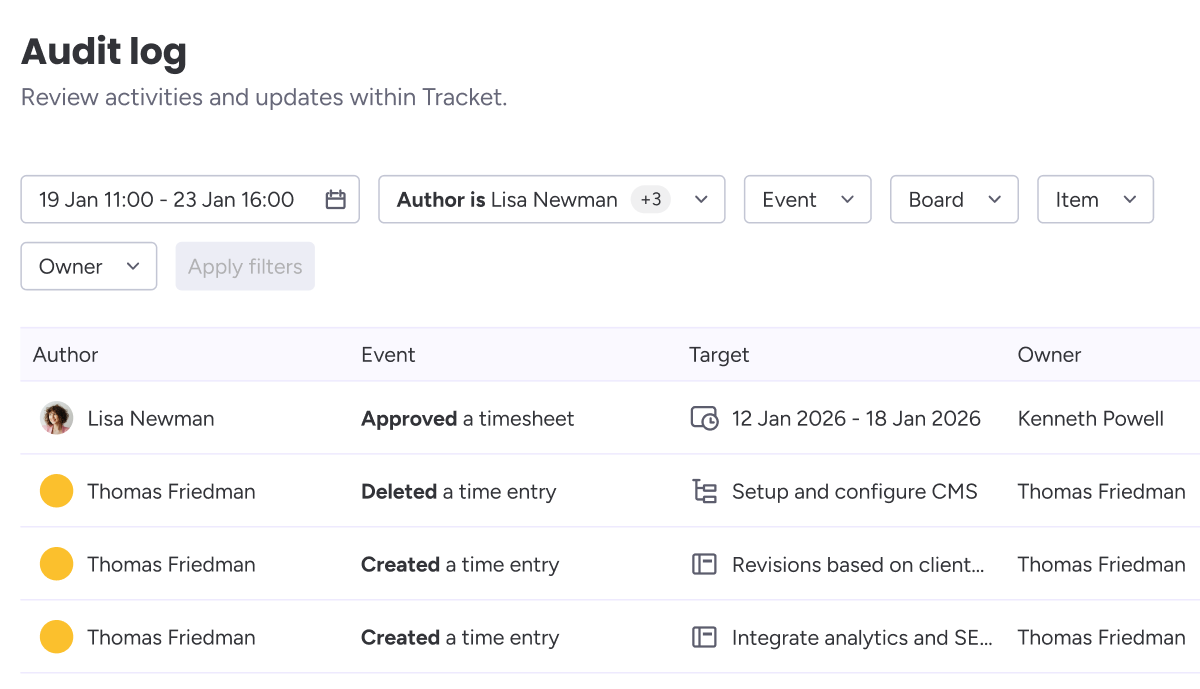
You'll see a table of all recorded events with the most recent first. Each row shows who performed an action, what happened, what was affected, and when. Above the table, you'll find filter options to narrow down the events. Use the Search by ID field in the top right to find events related to a specific time entry, board, or item.
Filter Events
The Audit Log can contain thousands of events. Use filters to narrow down what you see and find specific activities quickly. Filters work together, so when you combine multiple filters, the Audit Log shows only events that match all your criteria.
Start by setting a date range to limit results, then add filters for author, event type, board, item, or owner as needed. After selecting your criteria, click Apply filters to update the view.
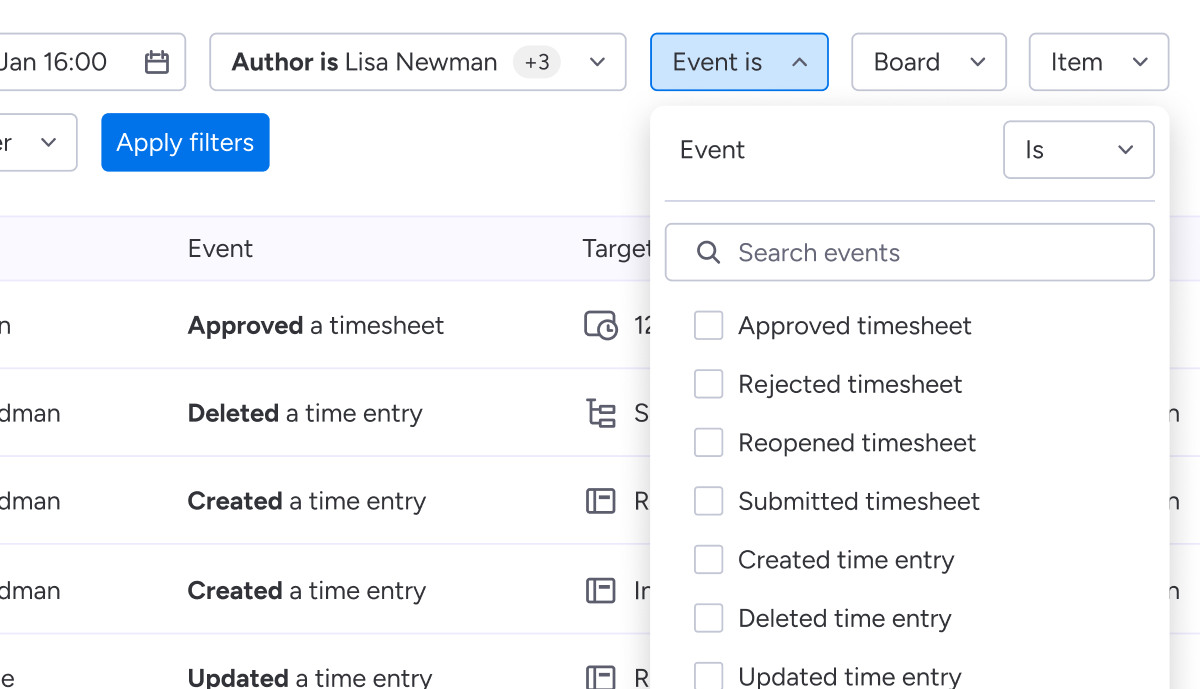
Available filters
-
Date range: Click the date range field (default: "All time") to select a preset period like Today, This week, Last month, or This quarter. For specific dates, click Set dates and enter a custom start and end date.
-
Author: Filter by who performed the action. Select one or more users.
-
Event: Filter by what happened. Available event types are: Created time entry, Updated time entry, Deleted time entry, Submitted timesheet, Approved timesheet, Rejected timesheet, and Reopened timesheet.
-
Board: Filter by which board the time entry belongs to.
-
Item: Filter by which item the time entry is logged against.
-
Owner: Filter by who owns the time entry or timesheet.
-
Each dropdown includes a search field to quickly find values and a Clear selection option to reset that filter.
Search by ID
While filters help you browse events by criteria, Search by ID lets you drill down to a specific time entry, board, or item and see its complete history.
Enter any ID in the Search by ID field and press Enter. The Audit Log instantly shows all events related to that ID, including every creation, update, deletion, or approval action ever recorded for it.
This is especially useful when:
-
Investigating a specific time entry: Paste a time entry ID to see its full lifecycle, from when it was created through every edit made to it, and whether it was eventually deleted.
-
Auditing a board: Enter a board ID to see all time entry activity across that board.
-
Reviewing an item's history: Enter an item ID to see all time logged against it and any changes made.
You can find IDs by expanding any event row in the Audit Log and copying them using the copy icon.
Viewing Event Details
Each row shows the author, event type, target, owner, and timestamp. Click a link in the Target column to open the related board item or timesheet.
Expand event details
Click the chevron icon in the Details column to see more information:
-
Time Entry ID: Unique identifier for the time entry
-
Author ID: Unique identifier for the person who performed the action
-
Owner ID: Unique identifier for the time entry owner
-
Field changes: For created events, all field values. For updated events, old and new values shown side by side.
-
Rejection message: For rejected timesheet events, the message provided by the reviewer.
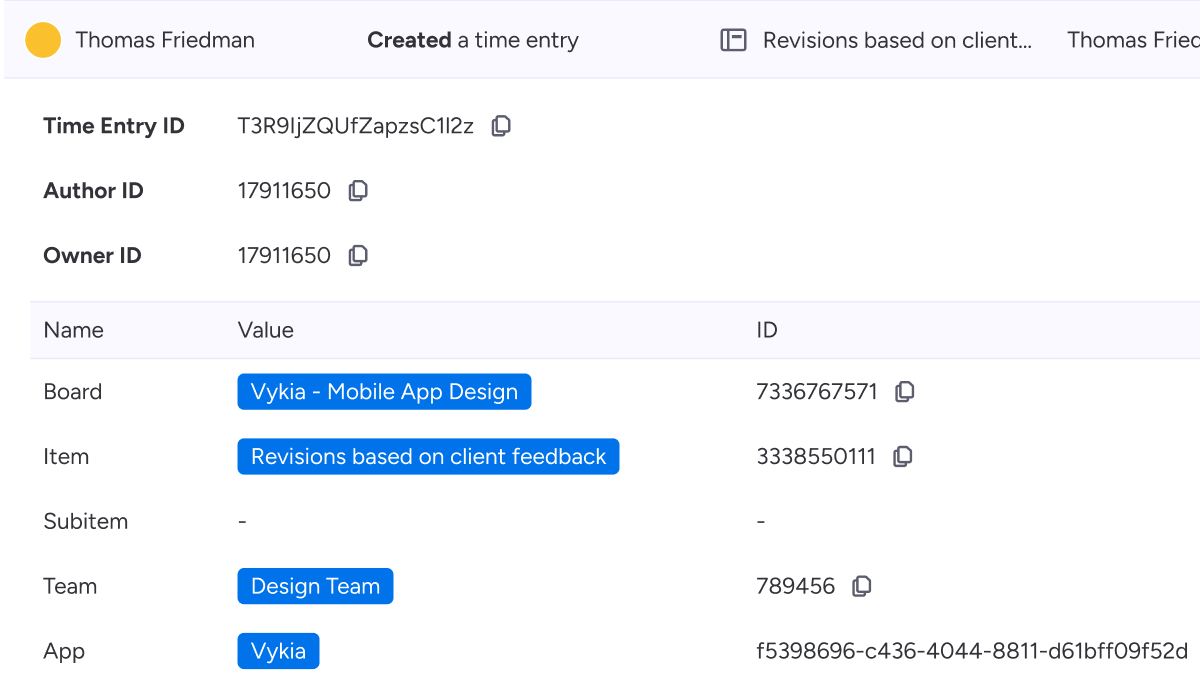
Copy IDs: Click the copy icon next to any ID field to copy it to your clipboard. Use copied IDs with Search by ID to investigate related events, or include them when contacting support.
Common Use Cases
Investigating missing time entries: A team member reports their logged hours disappeared. Filter by owner and date range to find events, then use Search by ID on the time entry to see if it was deleted and by whom.
Auditing approval workflows: Review all timesheet activity for a compliance report. Filter by event type (submitted, approved, rejected) and date range to see the full approval history.
Troubleshooting timesheet rejections: Expand a rejected timesheet event to see the rejection message and understand what needs correction.
Tracking all changes to a project: Enter the board ID in Search by ID to see every time entry event across that project. This is useful for project retrospectives or client billing reviews.
Tips & Best Practices
-
Start with a date range filter to limit results before adding other filters.
-
Use Search by ID for deep investigations since it shows the complete history of any time entry, board, or item.
-
Copy IDs when documenting issues or communicating with support for easy reference.
-
Check expanded details on updated events to see exactly which fields changed and their before and after values.