
The Homepage is the first page you see when you open Atlas CRM. It gives you a quick view of what’s going on: the records you worked on recently, recent activity, your pipeline and your upcoming reminders.
To go back to the Homepage, click Home in the side menu or the Atlas CRM logo on top.
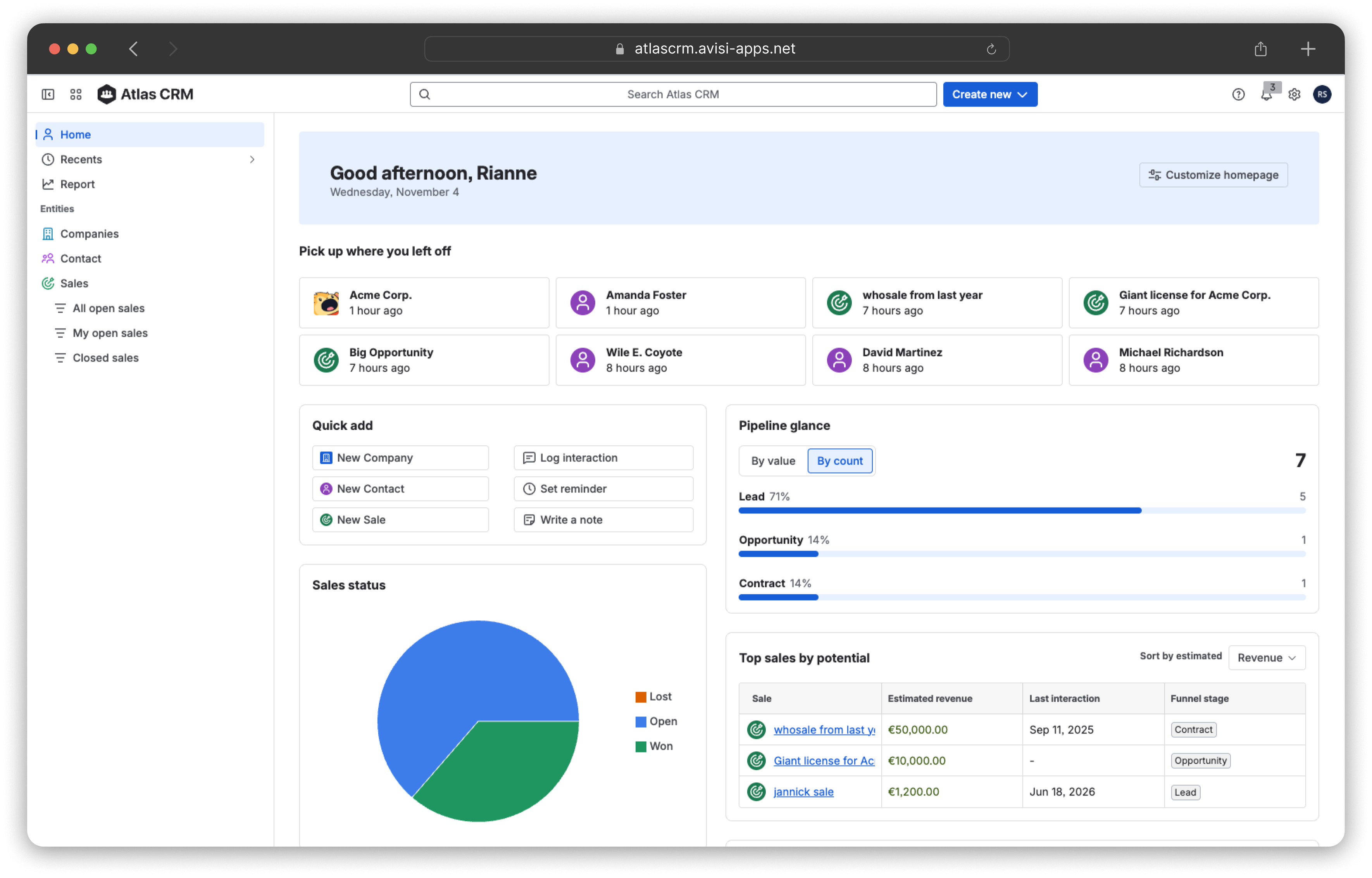
Pick up where you left off
At the top of the Homepage, you see the companies, contacts and sales you opened most recently. Click a record to open it again.
All widgets
The Homepage is personal. You choose which widgets you see and in what order, and your changes don’t affect your colleagues.
Your work widgets
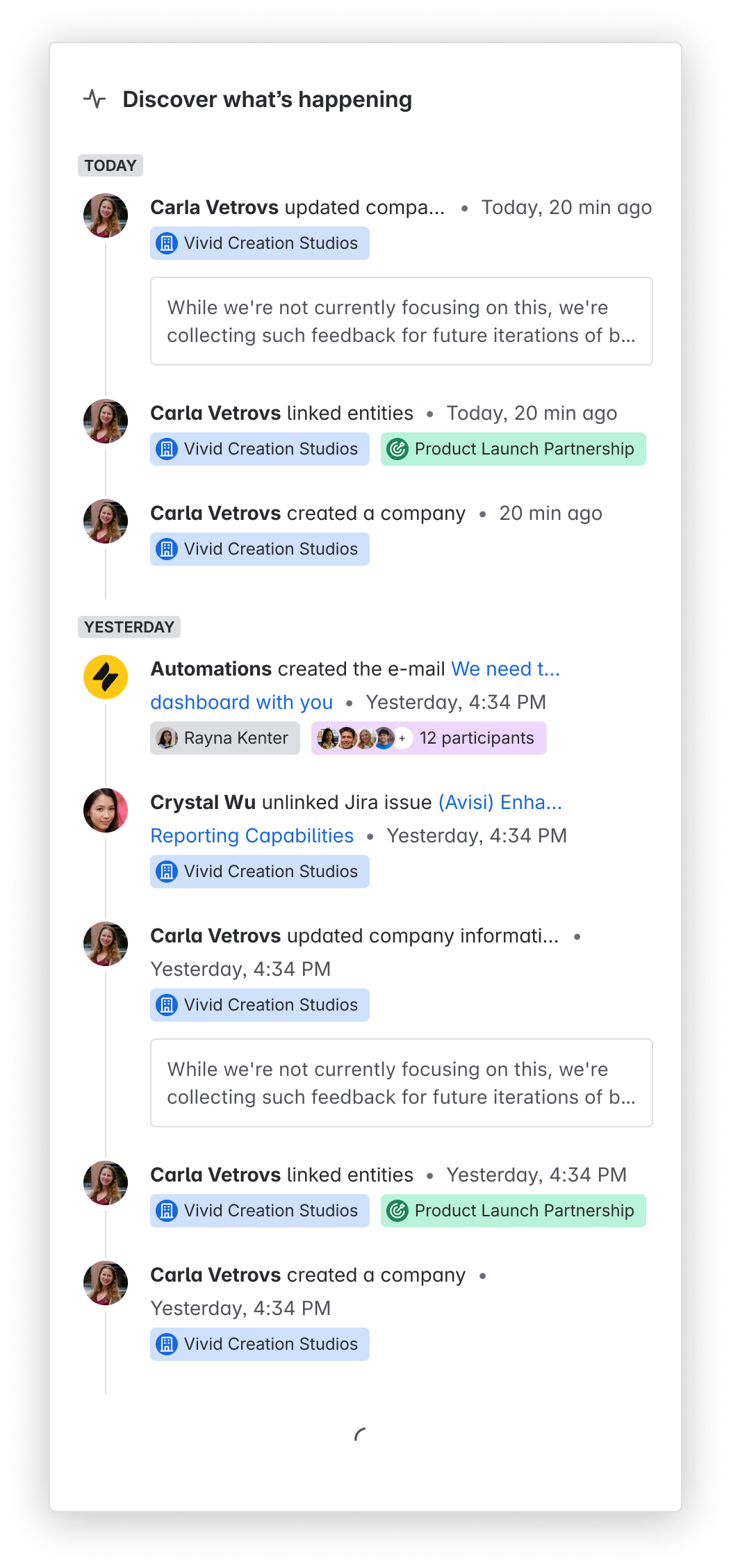
Activity feed
All recent activity in Atlas CRM, such as linked work items and Confluence pages, deleted records and status changes. Click Load more to see older activity.
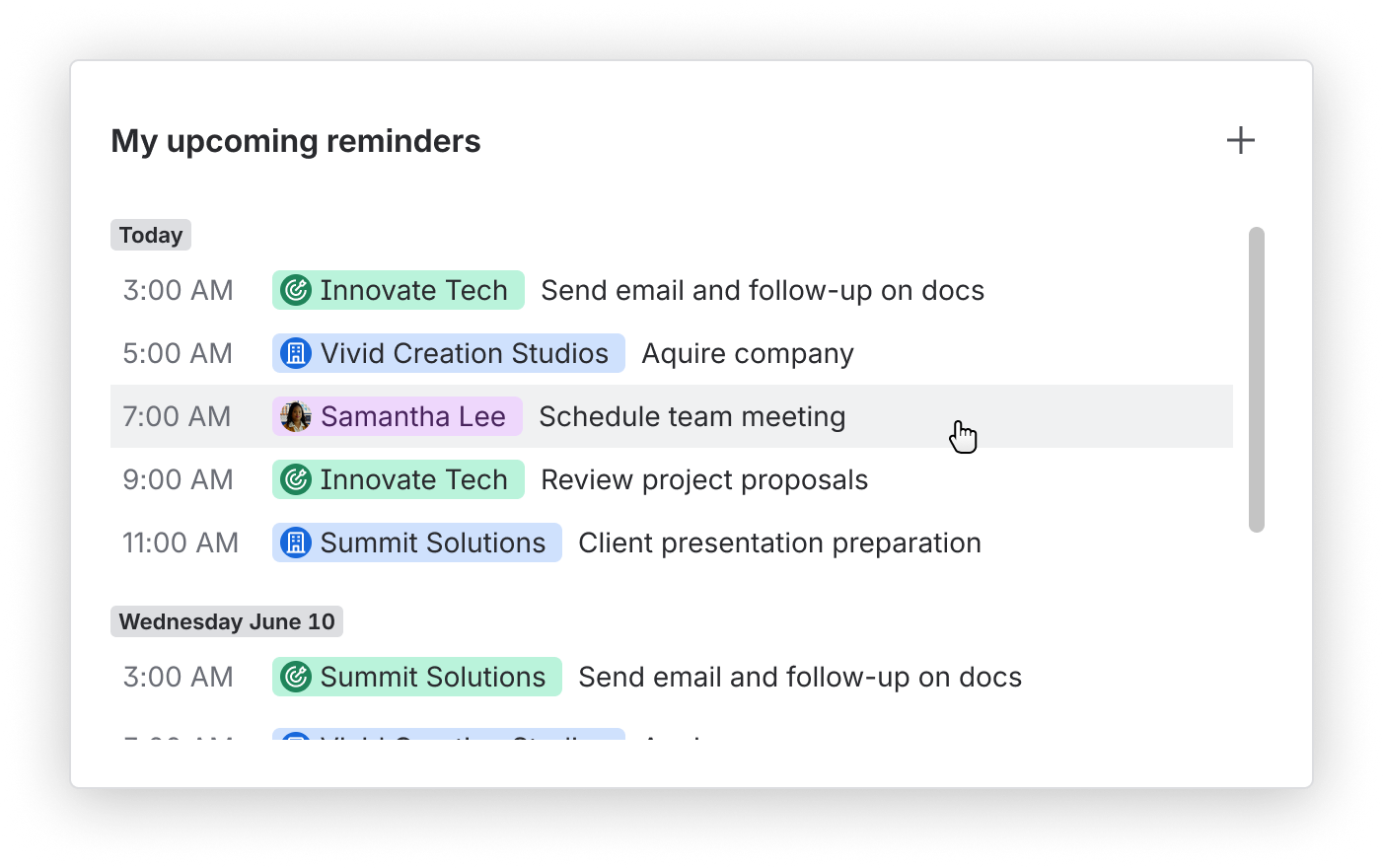
My upcoming reminders
Your upcoming reminders, grouped by day. Click + to create a new reminder.
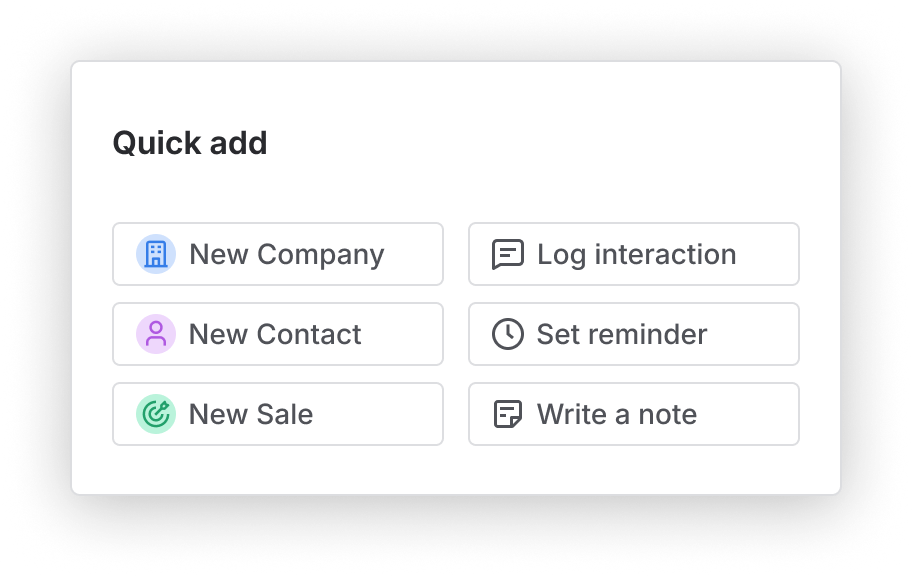
Quick add
Shortcuts to quickly create something new: a company, contact or sale, an interaction, a reminder or a note.
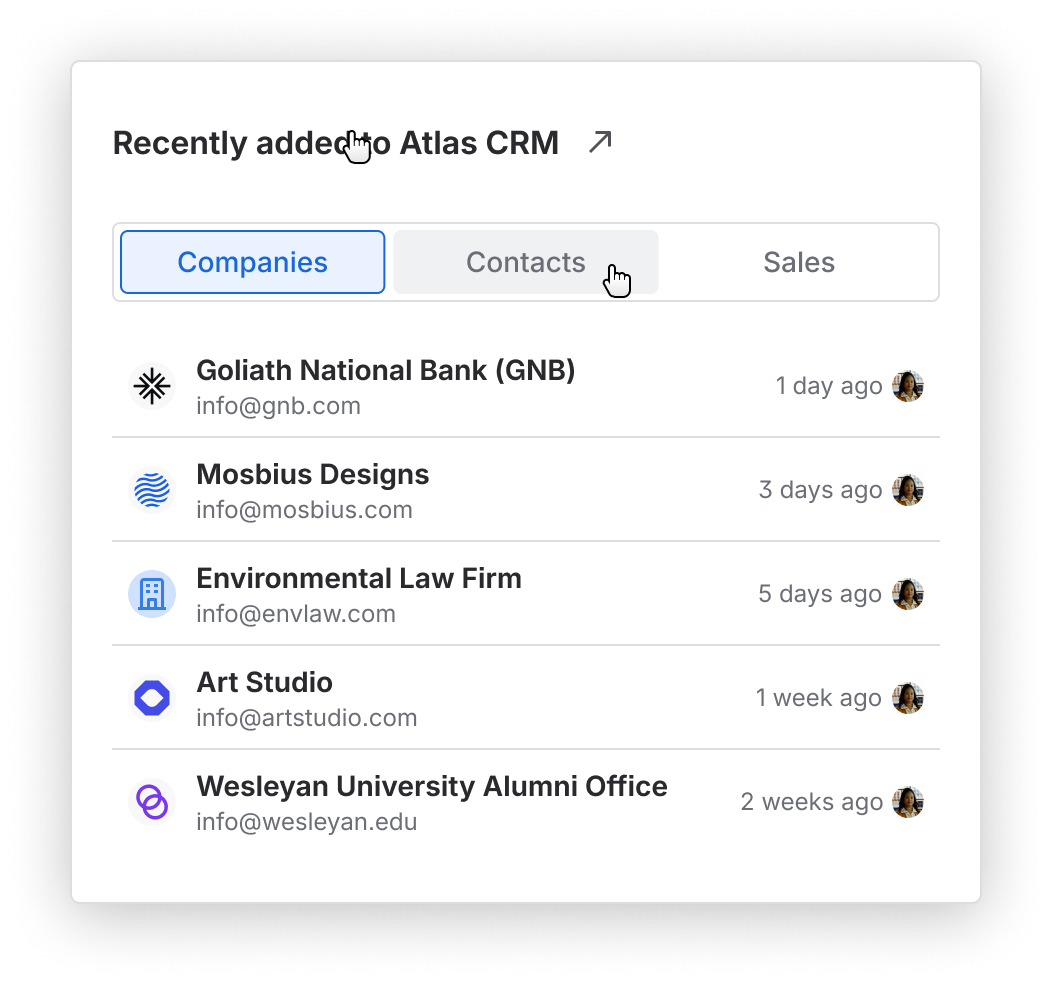
Recently added to Atlas CRM
The companies, contacts and sales that were added most recently. Use the tabs to switch between companies, contacts and sales.
Sales widgets
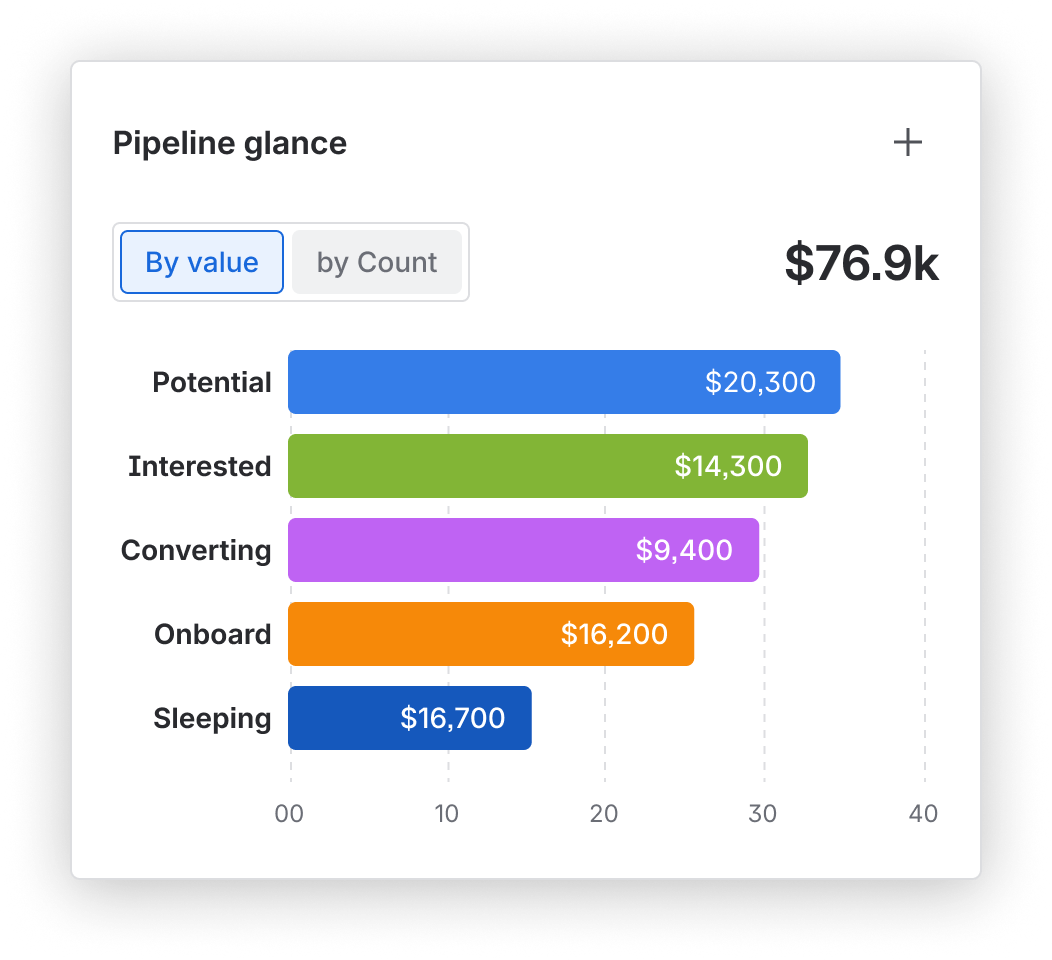
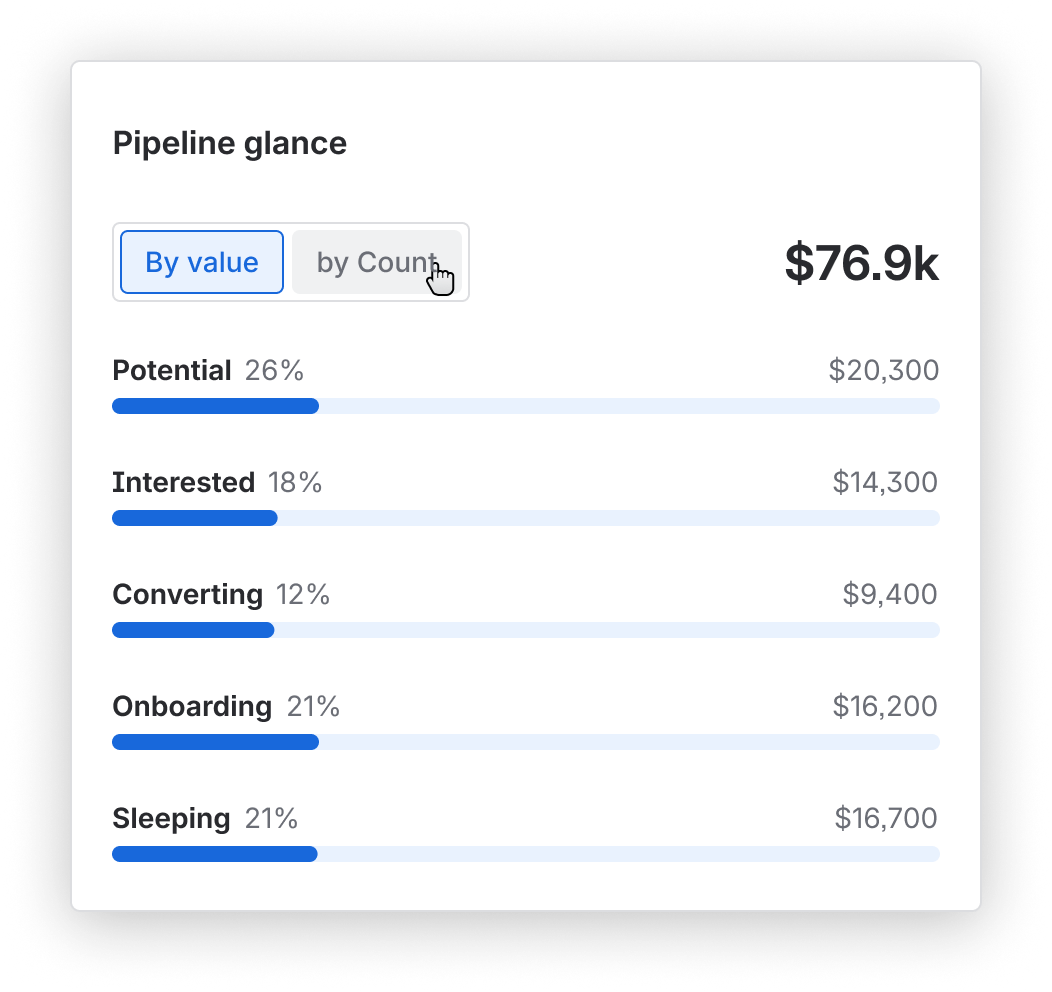
Pipeline glance
There are two Pipeline glance widgets. Both show your open sales per stage of the sales funnel, but in a different way:
-
Pipeline glance (progress bars) shows each stage as a progress bar, with the share of your open sales in that stage.
-
Pipeline glance (bar chart) shows each stage as a bar in a chart, so you can compare the stages at a glance.
In both widgets, switch between By value to see the total revenue per stage, and By count to see the number of sales per stage.
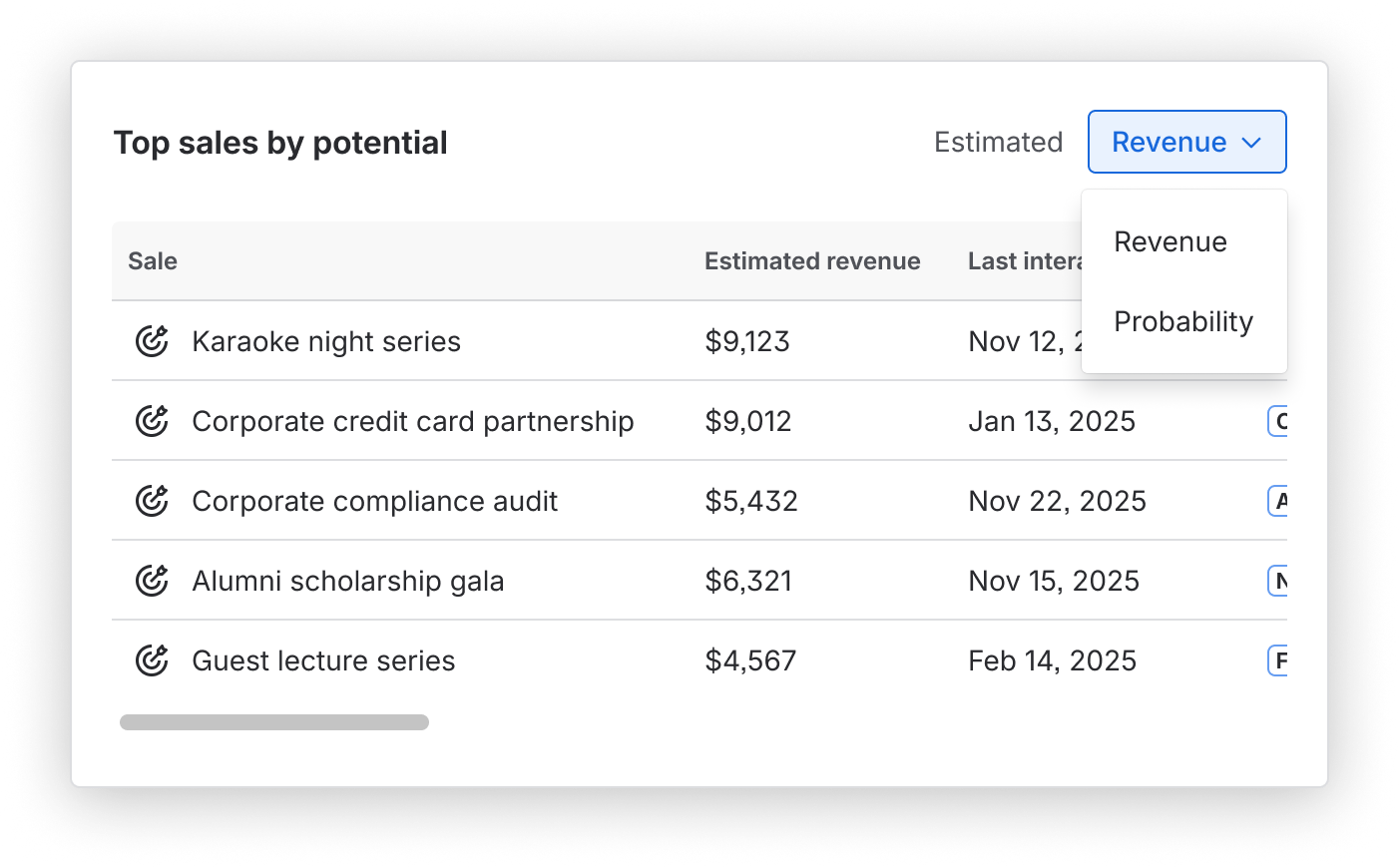
Top sales by potential
The open sales with the highest potential, with their estimated revenue, last interaction and funnel stage. Use Sort by estimated to sort the sales by estimated Revenue or estimated Probability.
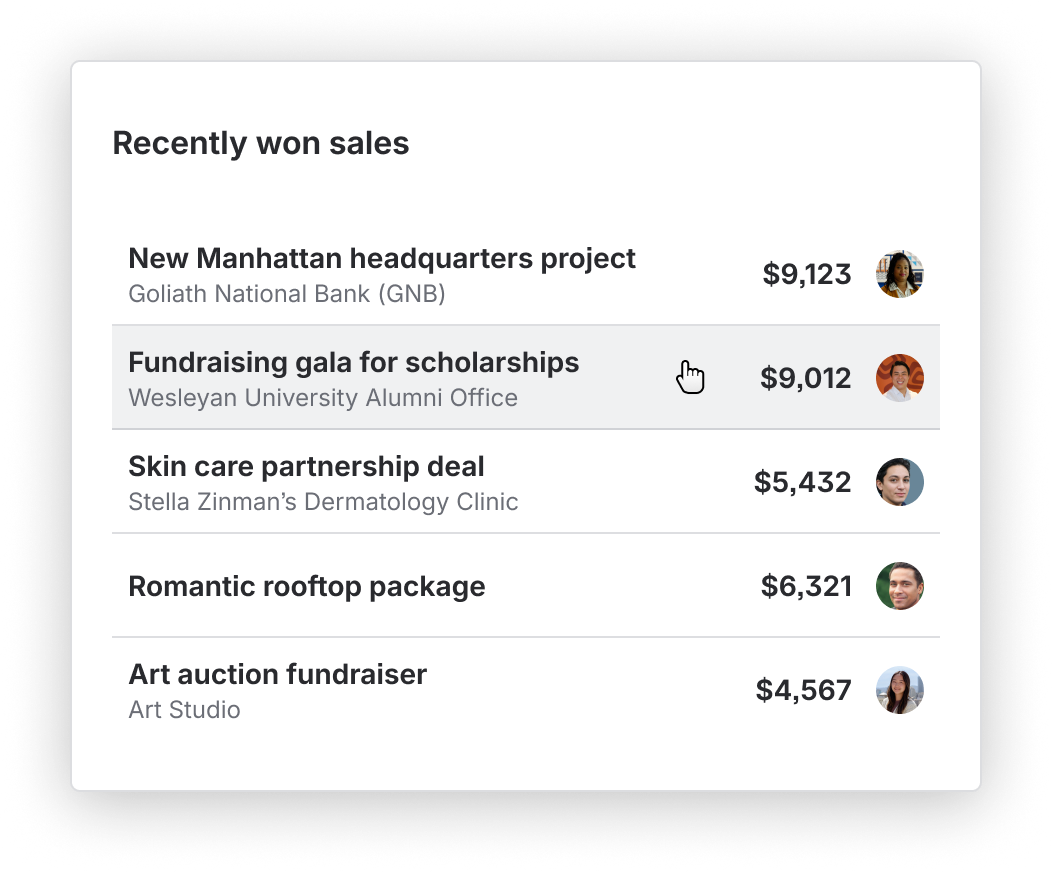
Recently won sales
The sales that were won most recently, with their revenue and assignee.
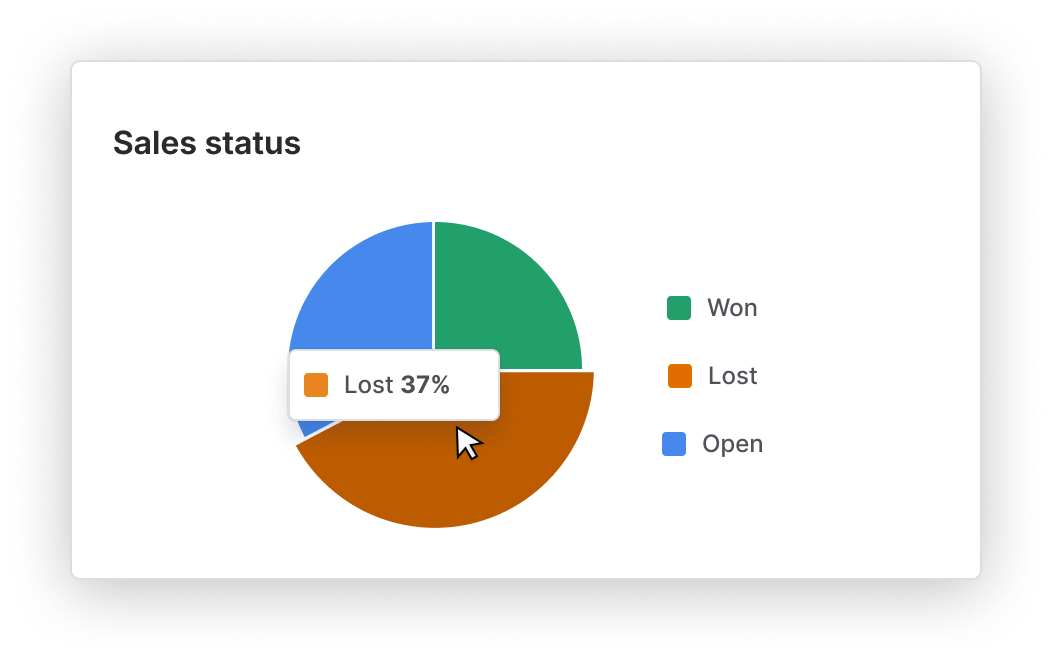
Sales status
A pie chart that shows how many sales are open, won or lost.
Customize the Homepage
The Homepage is personal. You choose which widgets you see and in what order, and your changes don’t affect your colleagues.
-
Click Customize homepage.
-
Move, add or remove widgets.
-
Click Done editing.