
Filters help you find the companies, contacts and sales you are looking for. All filters are set in one place, the filter panel, and can be shared with a colleague using a link.
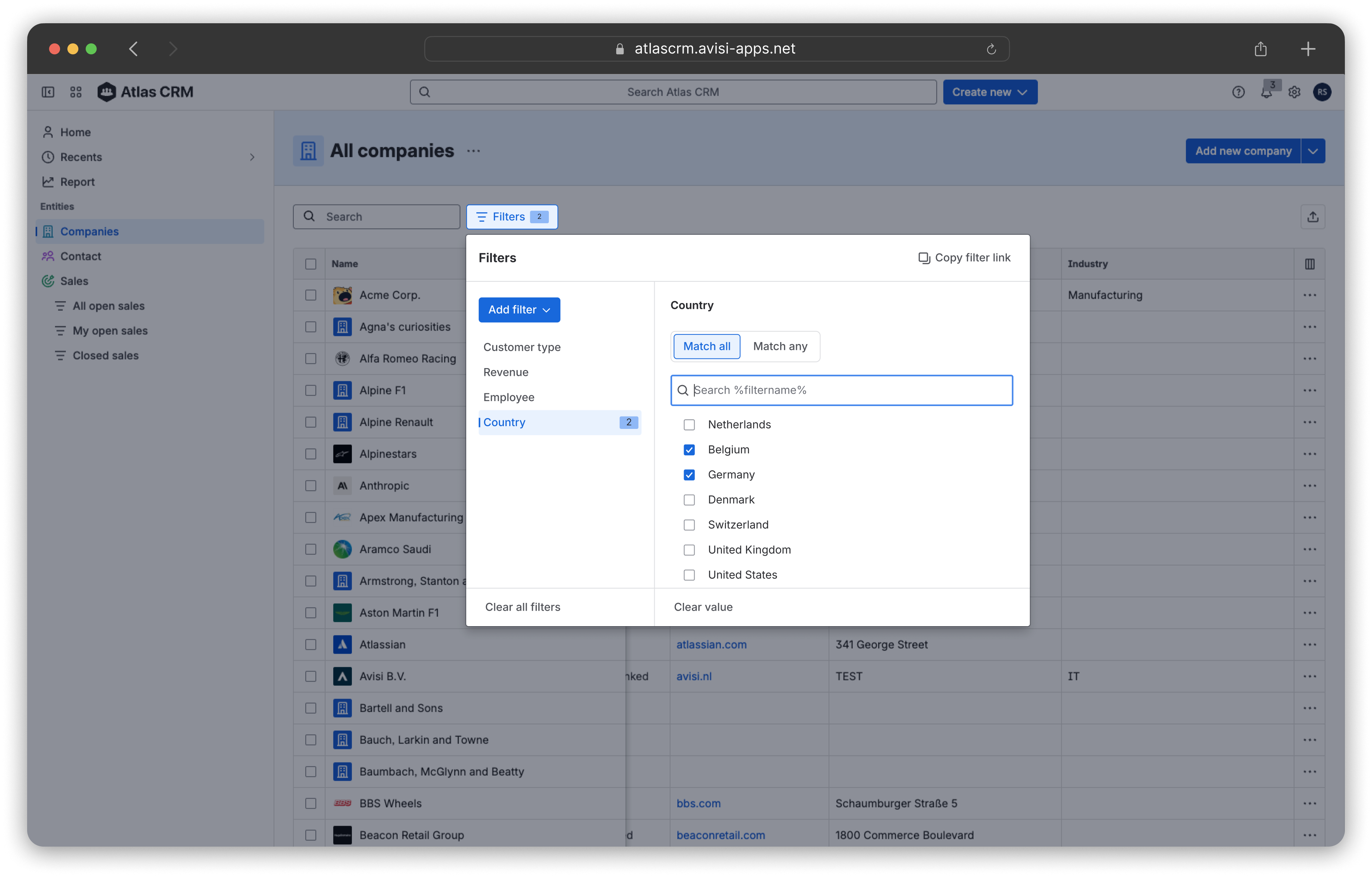
Opening the filter panel
Click Filter above the table to open the filter panel. When filters are active, the button shows how many, for example Filter 2.
Adding a filter
-
In the filter panel, click Add filter.
-
Search for or select the field you want to filter on. All fields of the template are available.
-
Set the value on the right side of the panel. The table updates right away.
The fields you filter on are listed on the left side of the panel. A number next to a field shows how many values are selected.
Filtering per field type
The way you set a value depends on the type of field.
|
Field type |
How to filter |
|---|---|
|
Text (single line), Text (multi line), Email address, Phone number, URL |
Type a value or part of it. Only the selected field is searched. For example, “ACME” finds every email address that contains ACME. |
|
Number |
Choose Exact to filter on one value, or Range to filter between two values. Leave From or To empty for an open range. |
|
Date |
Choose Exact to filter on one date, or Range to filter between two dates. |
|
Select list (single) |
Select one or more options. The table shows items with any of the selected options. |
|
Select list (multi) |
Select one or more options and choose Match any to show items with at least one of them, or Match all to show items with all of them. |
|
User |
Select one or more users, or Unassigned to show items without a user. |
Combining filters
When you filter on more than one field, the table only shows items that match all filters. For example, filtering on Country Netherlands and Customer type Partner shows all partners in the Netherlands.
Removing filters
-
Clear value removes the value of the selected field.
-
Hover over a field in the list and click × to remove the field and its filter.
-
Clear all filters removes all filters at once.
Fields without a value are removed from the list when you close the filter panel.
Sharing filters
Click Share in the filter panel to copy a link to the filtered list. Colleagues who open the link see the same list with the same filters.
Colleagues only see the items they have access to in Atlas CRM, so their list can be shorter than yours.