
A company can be created to manage all information regarding that company. The information that you can store in a company can be tailored to the need of your business by customizing the company Templates.
Companies overview
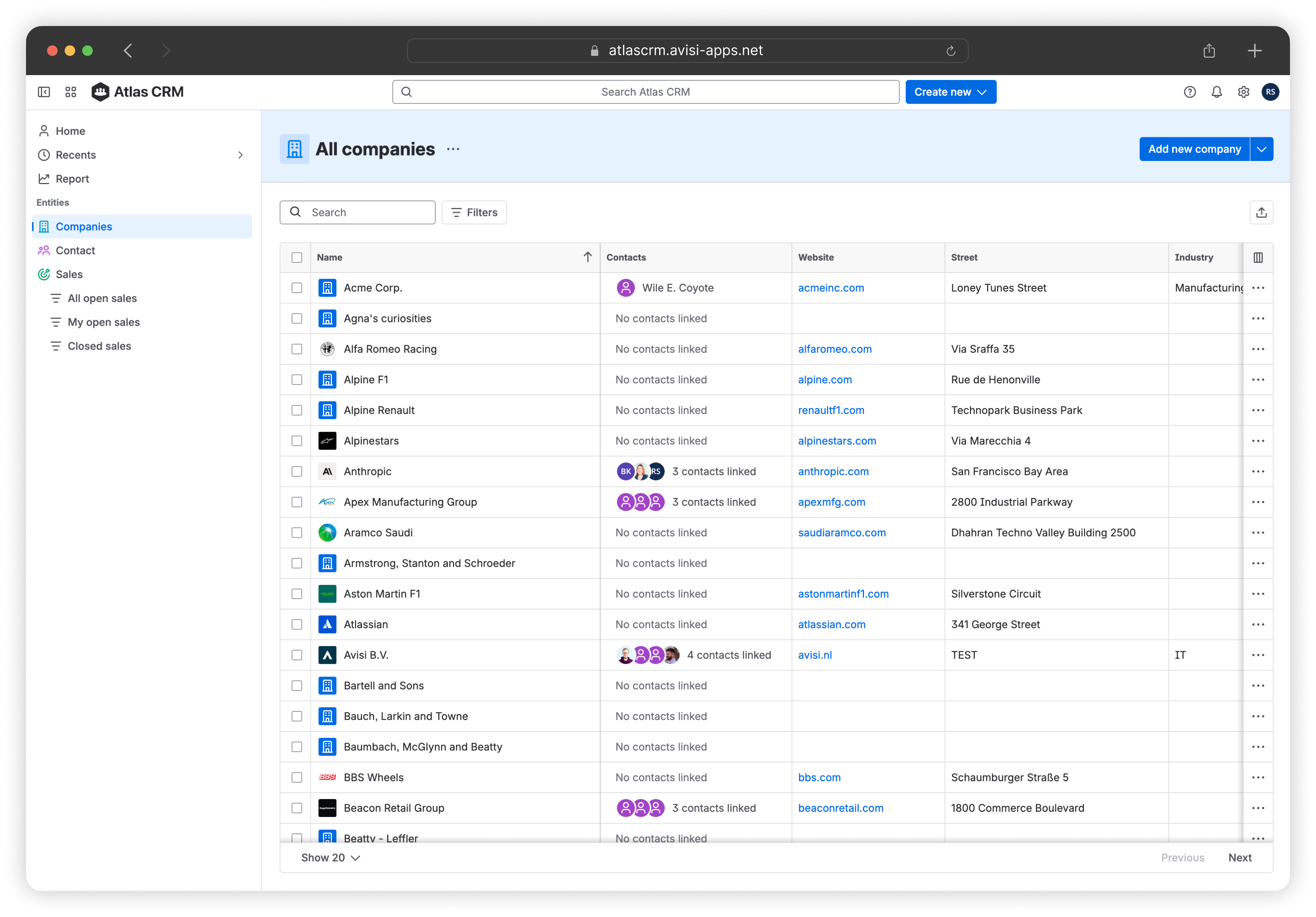
The Companies overview is a table with all companies in Atlas CRM. From here, you open a company to see its details.
-
Search for a company by name.
-
Sort the table by clicking a column header.
-
Resize columns to see longer values.
-
Hide or show different columns by using the culumn-selecter at the top right of the table.
To find specific companies, use filters. See Filters for more information.
Creating a company
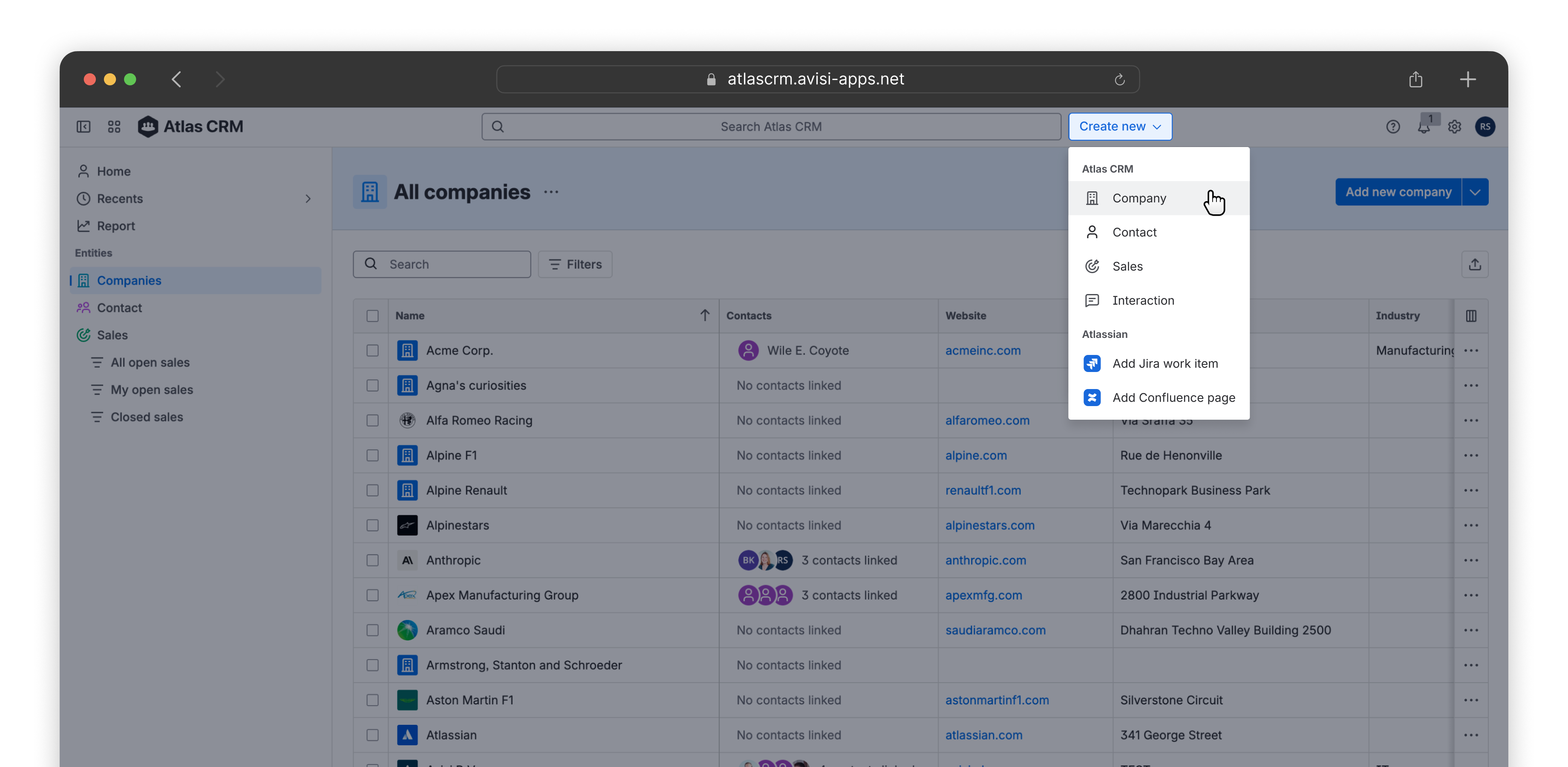
A company can be created from the main Create button in Atlas CRM, or the Add new company button on the Overview header. A modal opens in which you’ll fill in all the details of this new company. These fields are configured by the Company template. See Templates.
Linking
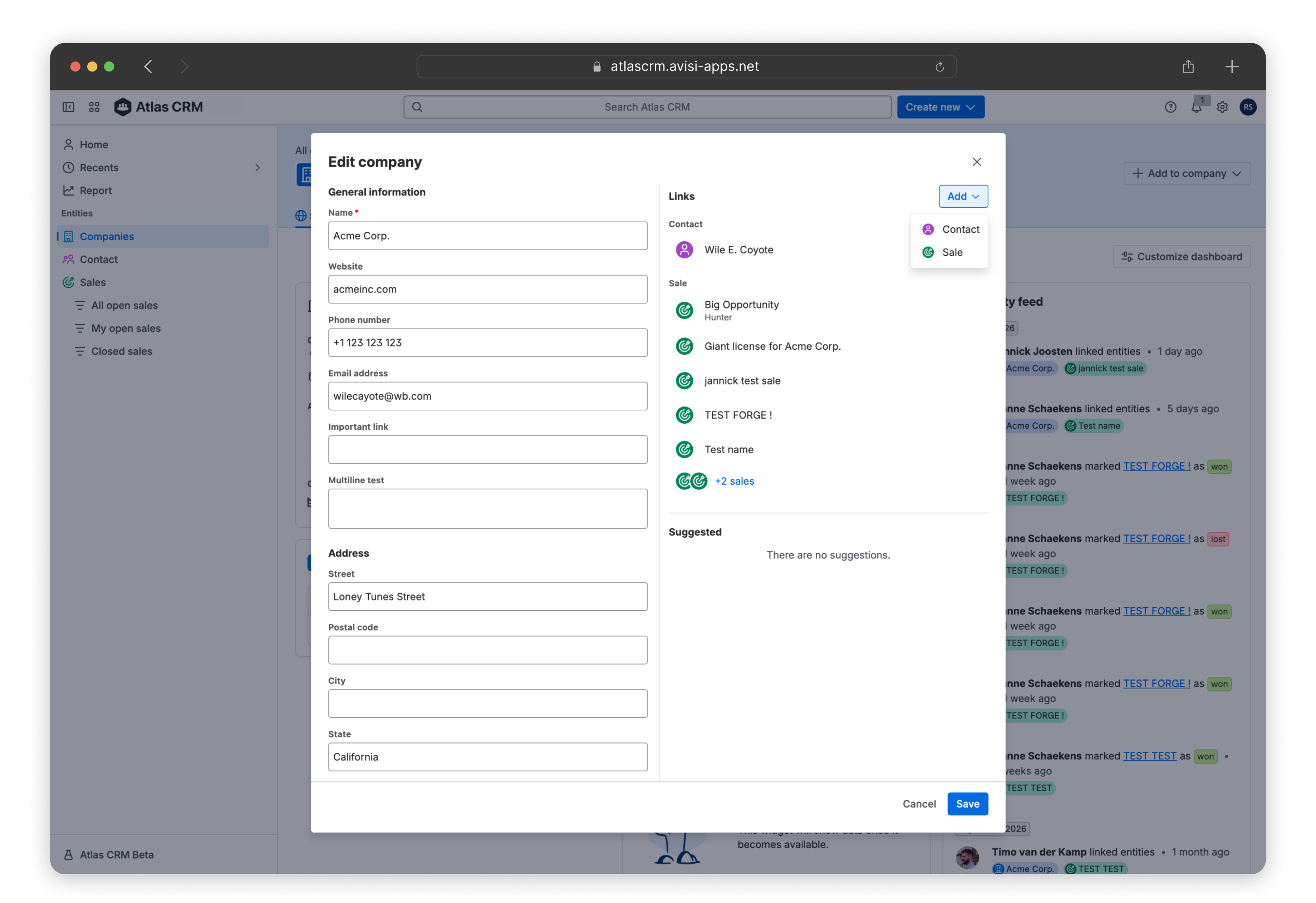
A company can be linked to contacts and sales in Atlas CRM. Linking a contact to a company shows a contact is working at that company. Linking companies and contacts to sales show who is involved in a sale and which company is your (potential) customer.
You can link a Contact or a Sale to a Company from the edit modal or by navigating to the corresponding tab in the detail view of a company.
Company page
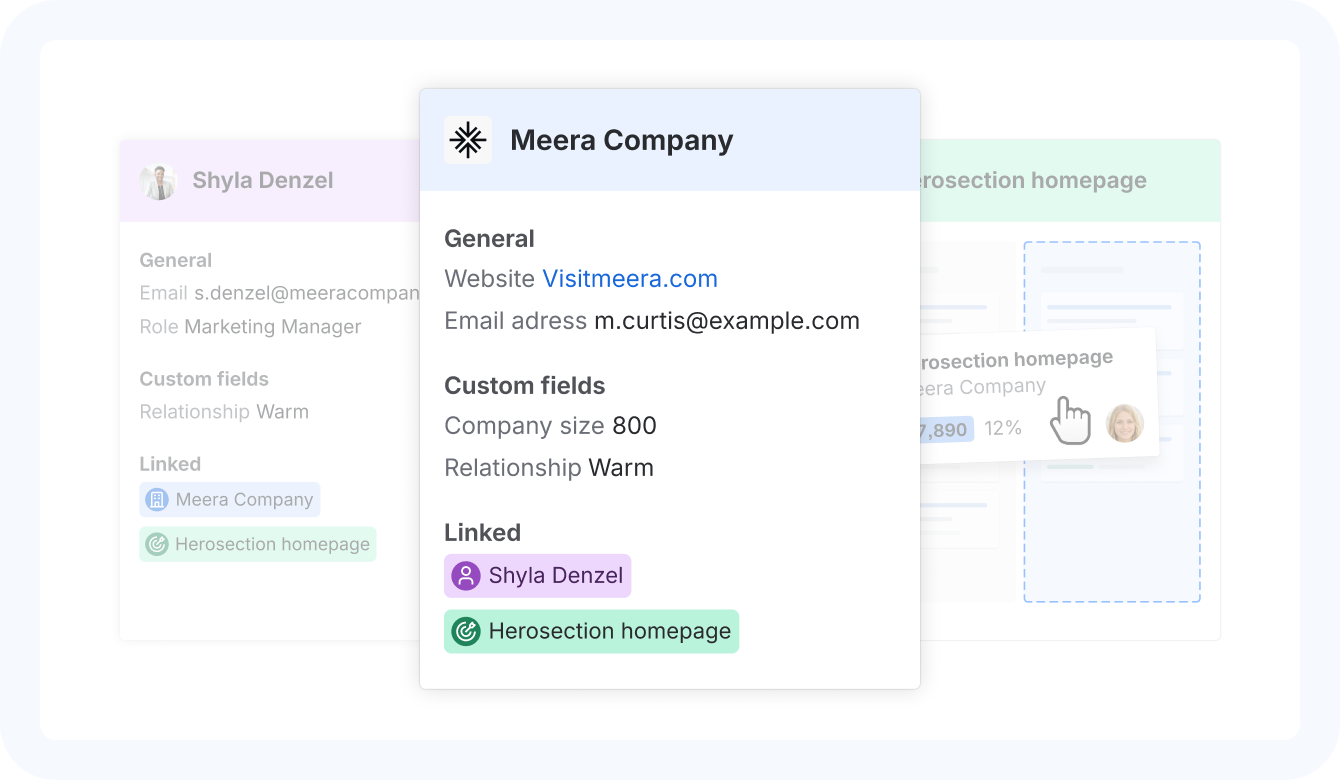
When you click a company from the overview, its details page opens so you can inspect the available information more closely. Each tab is set up to highlight specific types of data, giving you a clear way to navigate and find what you need.

Summary
The Summary tab gives you a quick view of the company as soon as you open it. It contains these widgets:
|
Summary |
A selection of fields from the template, so the most important information is visible right away. |
|
Activity feed |
All activity on this company, such as changes and new links, by you and your colleagues. |
|
Latest interactions |
The three most recent interactions. |
|
Latest note |
The most recently added note. |
|
|
Jira work items linked to this company. From here you can easily create a new work item, directly linked to this company. This widget will only show when Atlas CRM for Jira is installed. |
|
|
Confluence pages linked to this company. This widget will only show when Atlas CRM for Confluence is installed. |
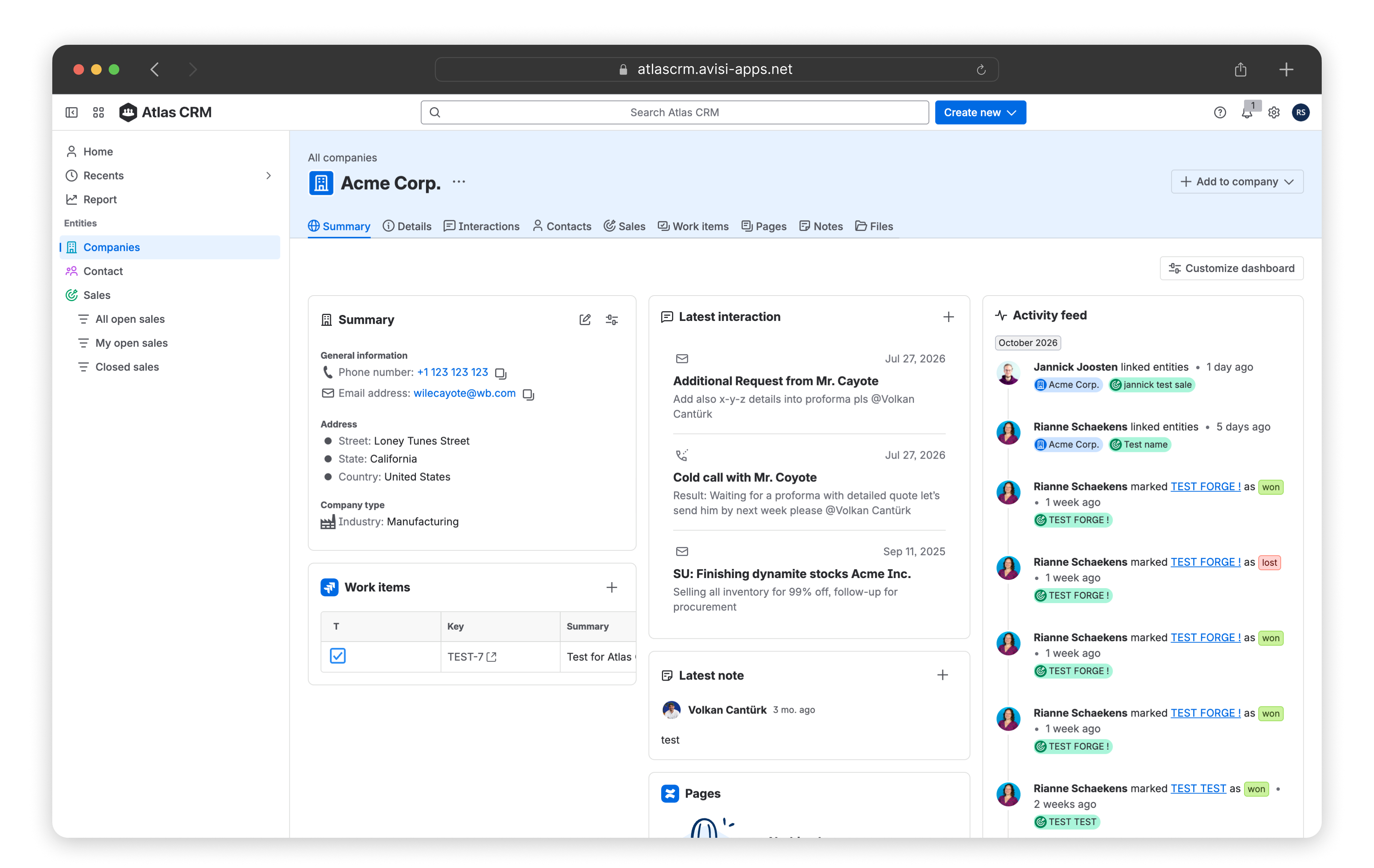
Customize the Summary tab
You can change which widgets appear on the Summary tab and in what order:
-
Click Customize page.
-
Move, add or remove widgets.
-
Click Done editing.
Changes to the layout of the Summary tab apply to all users in Atlas CRM. This is different from the Homepage, where each user sets up their own layout.
Details
The Details tab shows all fields from the company Templates, grouped in sections. This is a direct representation of your Company.
Interactions
The Interactions tab shows a timeline of all calls, meetings, emails and support tickets with this company. See Interactions for more information on integrations and types of interaction.
Contacts
The Contacts tab shows people linked to this company. Usually they are contact persons from this company. You can link a new or an existing contact by using the Link contact button.
Sales
The Sales tab shows the deals you have with this company. You can link a new or an existing sale by using the Link sales button.
Work items
The Work items tab shows all Jira issues linked to this company. This view provides a record of all work performed for this company.
Confluence pages
The Confluence pages tab shows pages linked to this company, such as agreements or contacts. You need the Atlas CRM app for Confluence to link pages. See Confluence pages.
Notes
Use notes to share information about the company with your colleagues, such as background information or agreements that aren’t recorded anywhere else.
The most recent note also appears in the Latest note widget on the Summary tab.
Files
Add files to the company, such as contracts or quotes.