
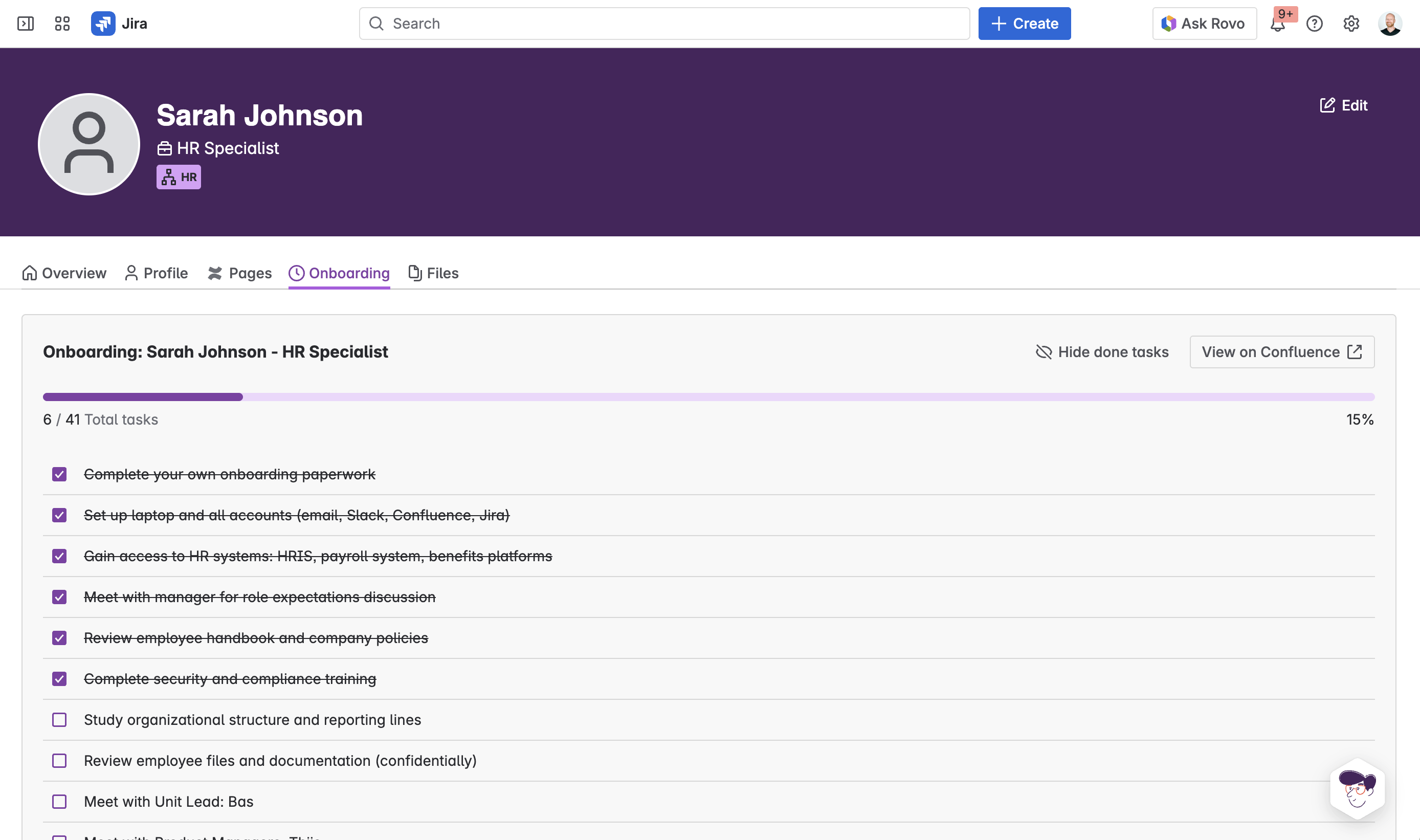
Getting new employees started well matters. The first days and weeks set the tone for someone's experience at your company. Frank automates the administrative side of onboarding so you can focus on the human side, while giving managers visibility into progress.
How onboarding works
Onboarding in Frank is triggered by a status change. When an employee's status transitions to "Onboarding" in the employee project, Frank automatically creates a personalized onboarding document in the employee's Confluence folder.
This works through Jira automation: when the work item (employee) transitions, Frank creates the onboarding page for that person. The automation rule is simple — "When: Work item transitioned → Then: Create onboarding page for a person."
The onboarding document
The onboarding document is a Confluence page created from your template and pre-filled with the employee's details: their name, role, department, manager, and start date. The page title follows the format "[Employee Name] Onboarding" and lives in their personal folder in the People space.
The document contains checklists that define what the new employee needs to complete. A typical onboarding document might include:
-
Meet your team
-
Meet your buddy
-
Get your laptop set up
-
Complete required training
-
Set up your development environment
-
Review company policies
-
Submit your first timesheet
As the employee works through these checklists and checks off items, their progress is tracked. This is what appears in the People Dashboard — the progress percentage reflects how many checklist items have been completed.
Customizing onboarding templates
You control what goes in the onboarding document. Edit the template in Confluence to match your organization's onboarding process. Add role-specific tasks, include links to important resources, and structure the content in whatever way makes sense for your team.
You can create different templates for different roles or departments. An engineer's onboarding might include setting up a development environment and completing security training, while a sales person's onboarding might focus on CRM access and product knowledge.
After the document is created for a specific employee, managers and HR can further customize it for that person's situation. Add tasks specific to their role, remove items that don't apply, or adjust timelines based on their start date.
Tracking progress
The People Dashboard shows onboarding progress for everyone currently in the onboarding phase. You'll see each employee's name, their role, and a progress bar showing completion percentage. Managers can see at a glance who's on track and who might need support.
If someone's progress has stalled, it's easy to spot. Click through to their onboarding document to see which tasks are incomplete, then follow up to see if they need help.
When onboarding ends
When an employee completes their onboarding and their status changes to "Active," they no longer appear in the onboarding section of the dashboard. Their onboarding document remains in their Confluence folder as a record of what was completed.